Worksheeet 1
Flash the on-board LED
1: Connect your computer to the Pico
This requires a USB lead (Micro USB not USC-C) between the computer
and the socket at the side of the Pico
2: Run Thonny on your computer
3: Get the Computer talking to the Pico
It may well be that the Thonny Shell window contains an error message
like this:-
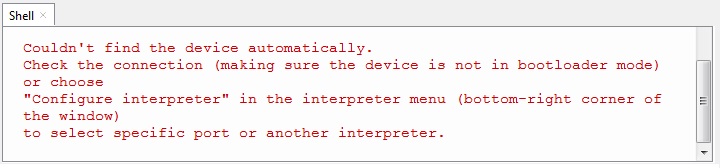
in which case try
- disconnecting the USB cable
- clicking the stop button at the top of the screen.
- reconnecting the USB cable
- clicking the stop button again.
If successful then the Shell window will display a message like this:
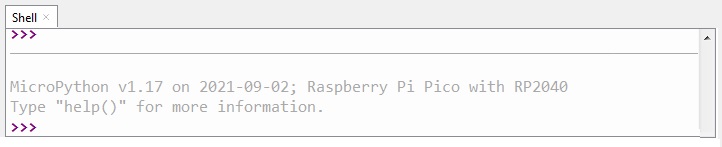
You can now enter commands for the Pico at the >>> prompt at the bottom
4: Enter a command to allow access to the Pins on the chip
>>> from machine import Pin
>>>
>>>
Thonny will send the command to the Pico and put another ">>>" prompt
to say it has accepted your line.
5: Enter a command to give the name "led" to the on-board LED
>>> led = Pin(25, Pin.OUT)
>>>
>>>
Thonny will set up the name "led" to be the on-board LED
6: Enter commands to turn led on and off
>>> led.on()
>>> led.off()
>>>
>>> led.off()
>>>
Thonny will send these commands to the pico as you type