Worksheet 2
Inputs: Switches, Pushbutton and Line sensors
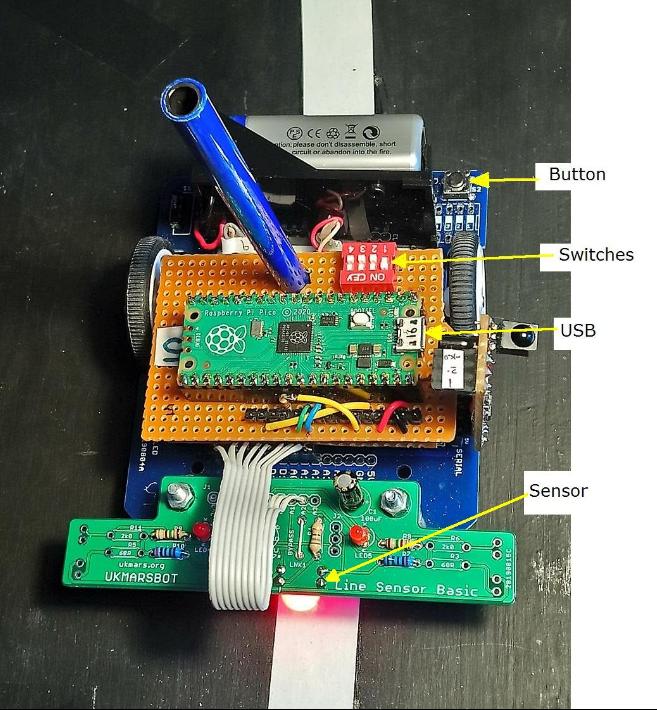
Purpose
This is to introduce you to the various inputs that the robot has,and how you connect with them using Python commands.
There's an introduction to the Python import command and the benefits it brings.
Task
You should find out how to read each of the 3 types of input using python.You should record how the values you get depend on what's happening to the sensors.
You will need to connect your computer running Thonny, to the Pico
on one of the UKMARS Robots.
There is an easier way of doing this, but we'll do it the hard way first.
1: Enter the command access to the Pins and the ADC inputs on the Pico
The ADC (analogue inputs) will be used for the line sensors
>>> from machine import Pin, ADC
>>>
>>>
Thonny will send the command to the Pico and put another ">>>" prompt
to say it has accepted your line.
2: Next command gives the name "Button" to the Robot's pushbutton
>>> Button = Pin(22, Pin.IN) )
>>>
>>>
This will set up the name "Button" to be the robot's push-button
3: Two alternative commands to print out whether the button is pressed or not.
Python will print something, if you just give a name.
>>> print(Button.value())
>>> Button.value()
>>>
>>> Button.value()
>>>
Try running this command with, and without the button being pressed
4: Next command gives the name "SW1" to switch number one on the Robot's circuit board
The switch connects the pin to earth, so it needs to be "pulled down" to give
a zero voltage when it's off
>>> SW1 = Pin(2, Pin.IN, Pin.PULL_DOWN)
>>>
>>>
This will set up the name "SW1" to be the robot's left hand switch
5: Enter a command to print out whether a switch is on or not.
>>> SW1.value()
>>>
>>>
Try running this command with, and without the switch being on
6: Now give the name "lfront" to the left hand sensor on the Robot's Line Sensor board
The voltage from the sensor varies, so it needs to be an analogue (ADC) input
>>> lfront = ADC(Pin(27))
>>>
>>>
This will set up the name "lfront" to be the robot's left hand sensor
7: Enter a command to print out the value from that sensor.
>>> lfront.read_u16()
>>>
>>>
Try running this command with, and without the sensor pointing at a white piece of paper
The easy way.
There's a file on the Pico called UKMARS.py that contains, amongst other things,the following commands
from machine import Pin, UART, PWM
led = Pin(25, Pin.OUT) # inbuilt LED
led2 = Pin(20, Pin.OUT) # side LED
rfront = ADC(Pin(26)) # right front sensor
lfront = ADC(Pin(27)) # left front sensor
Button = Pin(22, Pin.IN) #Hw29 Pushbutton
SW1 = Pin(2, Pin.IN, Pin.PULL_DOWN) #Hw4 1st
led = Pin(25, Pin.OUT) # inbuilt LED
led2 = Pin(20, Pin.OUT) # side LED
rfront = ADC(Pin(26)) # right front sensor
lfront = ADC(Pin(27)) # left front sensor
Button = Pin(22, Pin.IN) #Hw29 Pushbutton
SW1 = Pin(2, Pin.IN, Pin.PULL_DOWN) #Hw4 1st
This means that to include all those in your program, all you need is:
from UKMARS import led,Button,SW1,lfront
and you can miss out steps 1,2,4 and 6 in the tasks above!