Worksheet 7
Single-sensor line-follower program
Purpose
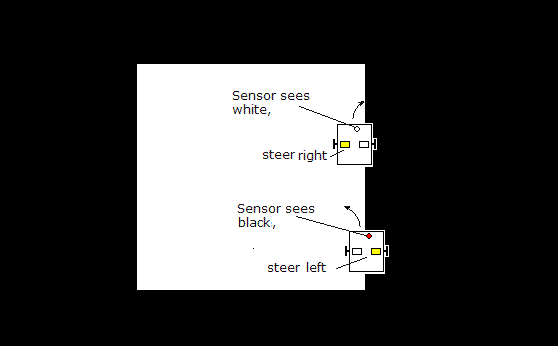
This is the simplest line follower: it works on one sensor only,and follows the side of the line.
It should be able to go round a rectangular sheet of paper!
It uses on-off steering
Task
You should put together all the steps shown below into a program on the Pico,You can then make adjustments to make it follow the line edge, without too much zig-zag.
You will write your program using Thonny, and download it to the Pico
on one of the UKMARS Robots.
You can write your program by entering it in the top window in Thonny,
then saving it to the Pico.
Save it to file "main.py", and it will run whenever the robot is switched on.
Step1: Start the program by importing all objects and functions needed
These come from a Python module called UKMARS written by the teachers.
The file UKMARS.py should be on your Pico, but if not, download it here
Please make sure it's the up to date version (13/11/2021)
There is an updated date in a comment near the top
#Step 1
from UKMARS import *
import time, utime
from UKMARS import *
import time, utime
This will set up the Motor object to control the motors, and let you read the button, switches and line sensors
Step 2: Next set up two Motor objects, one for the left the other for the right
See Python Class / Object
#Step 2
leftmotor = Motor("L")
rightmotor = Motor("R")
leftmotor = Motor("L")
rightmotor = Motor("R")
This will set up two object instance which have a '.speed()' method you can use.
You can use 'speed(0)' to stop , or you can use 'stop()'
Step3: Create a timed loop that will await a button press.
See Python Loops
#Step 3
while Button.value()==0:
time.sleep(0.01)
It repeatedly checks if the Button is pressed a hundred times a second.while Button.value()==0:
time.sleep(0.01)
Step 4: Set up an endless loop,
This will make the program able (later on)
to constantly read the sensors and adjust the motor speeds
Put this after the loop in Step3.
#Step 4
while True: #(start of loop)
# pulse LED
led.on()
utime.sleep(1)
led.off()
utime.sleep(1) #(end of loop)
This will constantly flash the LED on and off, but only after you press the buttonwhile True: #(start of loop)
# pulse LED
led.on()
utime.sleep(1)
led.off()
utime.sleep(1) #(end of loop)
Step5: Now make it do something useful in the loop
Put this instead of the LED flashing step 4.
#Step 5
# read a sensor value
right = rfront.read_u16() # right
# Print sensor value
print("Right=",right)
utime.sleep(1)
# read a sensor value
right = rfront.read_u16() # right
# Print sensor value
print("Right=",right)
utime.sleep(1)
This will print the "raw" sensor value
Step6: use calibr() to convert the sensor value
In addition calibr() lights the LED on the sensor board
if the value is greater than 20.
You can use this to see if everything's working OK
Put this instead of step5.
#Step 6
# read sensor value
right = rfront.read_u16() # right
right=calibr(right)
# Print the "calibrated" sensor value
print("Right=",right)
utime.sleep(1)
# read sensor value
right = rfront.read_u16() # right
right=calibr(right)
# Print the "calibrated" sensor value
print("Right=",right)
utime.sleep(1)
This will print the "calibrated" sensor value
Step7: Finally use the sensor value to set the motor speeds
The loop runs much quicker (100 times per second!)
Put this in the loop instead of step5.
#Step 7
# read sensor value
right = rfront.read_u16() # right
right=calibr(right)
if (right > 50): # see if we're on the bright side
leftmotor.speed(20) # set left speed
rightmotor.speed(0) # set right speed
else: # the dark side
leftmotor.speed(0) # set left speed
rightmotor.speed(20) # set right speed
utime.sleep(.01)
# read sensor value
right = rfront.read_u16() # right
right=calibr(right)
if (right > 50): # see if we're on the bright side
leftmotor.speed(20) # set left speed
rightmotor.speed(0) # set right speed
else: # the dark side
leftmotor.speed(0) # set left speed
rightmotor.speed(20) # set right speed
utime.sleep(.01)
This steers right if the sensor is bright, left if dark
Extension 1: Now adjust the four speeds to make it move more forwards as well as steer
You will need to use something else instead of speed(0)
Extension 2: Use three different ranges in value instead of just two
- if less than 33 steer left
- if greater than 33, and less than 66 go straight
- if greater than 66 steer right
see combined conditions link for help with the Python
This will lef it go straight, if exactly on the edge
(17/11/2021)